Today and moving around the app
Find your way around the station app: the sidebar, the top bar and its sync words, light and dark themes, and the Today screen with its setup checklist.
On this page
This page explains the parts of the station app screen that never change: the sidebar, the top bar and the bar at the bottom. It also explains Today, the first screen you see after you switch in.
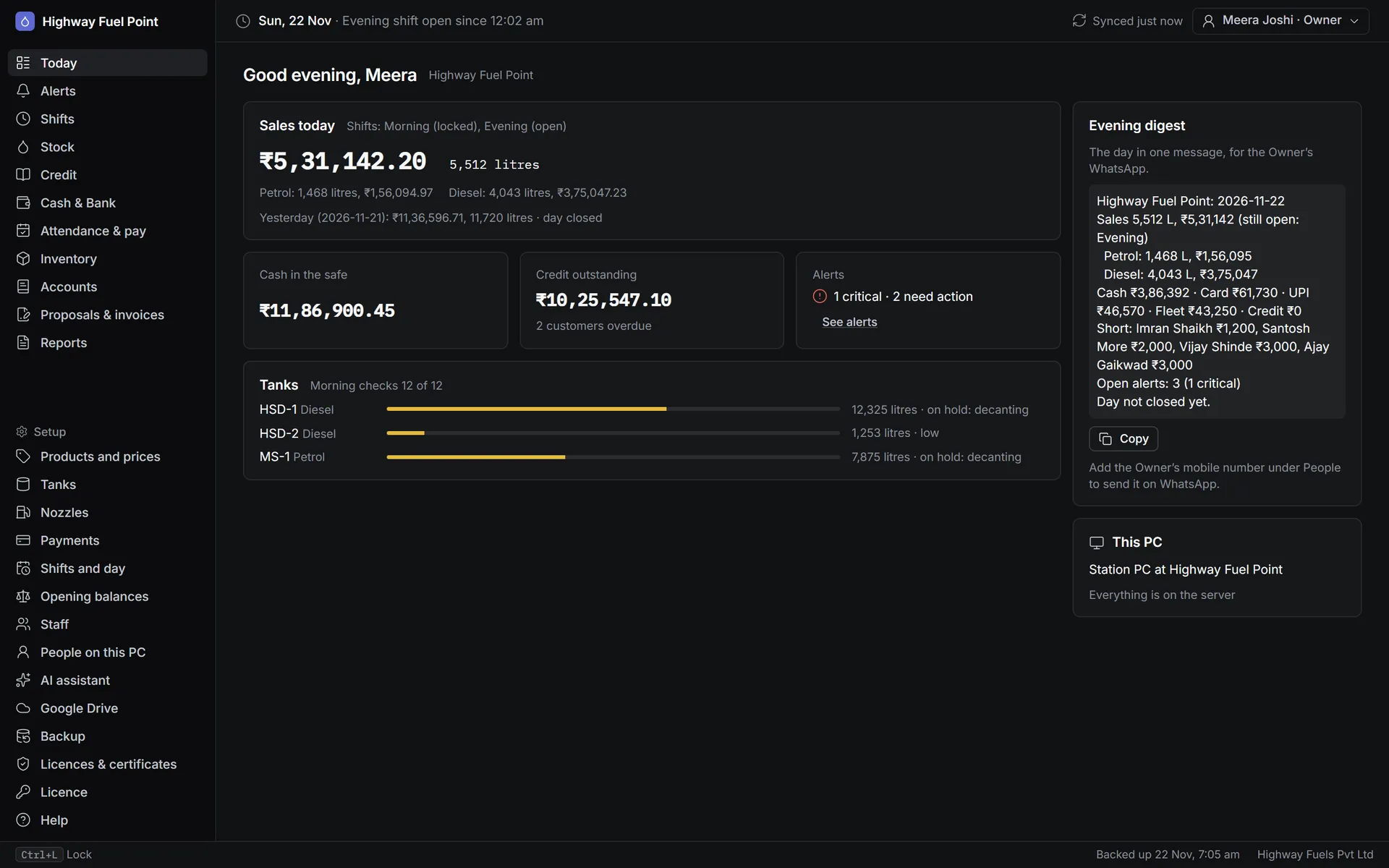
The sidebar
The sidebar on the left lists the parts of the app. Select a name to open it.
The station name is at the top. Below it are the daily work areas:
Today, Alerts, Shifts, Stock, Credit, Cash & Bank, Attendance & pay, Inventory, Accounts, Proposals & invoices, Reports.
Lower down, under Setup, are the station's settings:
Products and prices, Tanks, Nozzles, Payments, Shifts and day, Opening balances, Staff, Team & Access, People on this PC, AI assistant, Google Drive, Backup, Licences & certificates, Licence, Updates.
Help is at the bottom.
You see only the parts the Owner lets you use. A Cashier, for example, does not see Setup items like Tanks. See Roles and permissions.
The top bar
From left to right, the top bar shows:
- The date and the shift. For example, Sun, 22 Nov · Evening shift open since 12:02 am. When no shift is open, it says No shift open. Check this before you enter anything, so the entry goes to the right shift.
- The sync status, in words. See the next section.
- Your name and role. Select it to open your menu.
Sync status words
The sync status tells you whether your work has reached the server.
| What you see | What it means |
|---|---|
| Synced just now, Synced 5 min ago, Synced at 2:10 pm | Everything has reached the server. |
| Syncing… | The app is sending or fetching changes now. |
| Saved on this computer · 3 to sync | You are online. 3 entries are waiting to be sent. |
| Offline since 2:10 pm · 3 to sync | There is no internet. 3 entries are saved on this PC and wait to be sent. |
| Offline · saved on this computer | There is no internet. Nothing is waiting. |
| Not synced yet | This PC has not synced since it was set up. |
| Online sync paused · working offline | PetroKhata support has paused online sync for your business. See Sync paused. |
| This PC was removed. Sign in again. | This PC is no longer allowed to sync. |
Sometimes a small label shows beside the status, such as 1 entry needs a look. This means the server could not accept an entry. See Offline and sync.
Being offline is normal. You can keep working. Nothing is lost, and nothing on the screen is switched off. The entries go to the server when the internet comes back.
Your menu
Select your name at the top right to open the menu:
| Item | What it does |
|---|---|
| Switch person | Locks the PC and shows the list of names, so someone else can switch in. |
| Change password | Changes your own password. Needs the internet. |
| Lock | Locks the PC. The shortcut is Ctrl+L. |
| Dark theme or Light theme | Changes the colours of the app. |
See People, PINs and locking for switching and locking.
Light and dark
The app starts in the light theme. To change it:
- Select your name at the top right.
- Select Dark theme. To go back, select Light theme.
The choice is kept on this PC. It is the same for everyone who uses the PC.
The bar at the bottom
The thin bar at the bottom shows:
- Ctrl+L Lock, as a reminder;
- Update … available, with the version number, when a new version is ready. Select it to open Updates. See Updates;
- when this PC was last backed up, such as Backed up 22 Nov, 7:05 am, or No backup yet. See Backup and restore;
- the business name.
Notices above the screen
Sometimes a notice shows at the top of the screen, above the page:
- The licence. Near the end of the trial or the licence, and after it ends, a notice says where the licence stands, with a button Enter licence key. See Licence and trial.
- Paused sync. If support has paused online sync, a notice says Online sync is paused by PetroKhata support. Everything here keeps working offline.
The Today screen
Today greets you by name, for example Good evening, Meera, with the station name beside it.
The setup checklist
On a new station, Today shows Finish setting up the station, with a count such as 3 of 9 done and a bar.
The checklist has these steps:
| Step | Where you do it |
|---|---|
| Station details | Done when the business is registered. |
| Products and today’s prices | Products and prices |
| Tanks and dip charts | Tanks and dip charts |
| Dispensers and nozzles | Dispensers and nozzles |
| Card machines, QR and fleet cards | Payment instruments |
| Shifts and business day | Shift patterns |
| Opening balances | Opening balances |
| Staff | Staff |
| People who use this PC | People, PINs and locking |
Each step shows what is entered, or not yet. Select Open beside a step to go to that screen. If you may not open that screen, there is no Open button.
A step is done only when nothing in it needs attention. The step tells you what is missing, for example:
- 1 has no price: a product has no price yet;
- 1 needs a dip chart: a tank has no dip chart;
- no tank for a product: a fuel product has no tank;
- nothing draws from a tank: no nozzle is linked to that tank;
- 2 still to enter: some tanks or nozzles have no opening balance.
The checklist goes away when every step is done.
The day at a glance
Once opening balances are entered, Today also shows the day's figures:
- Sales today: the value and litres sold today, the shifts so far, each product, and yesterday's total, any shortage, and whether the day was closed;
- Cash in the safe;
- Credit outstanding, with how many customers are overdue;
- Alerts: how many are critical, need action, or are for information. Select See alerts to open them. See Alerts;
- Tanks: each tank's stock by the last dip, with low or on hold when that applies, and how many morning checks are done.
Evening digest
The Evening digest card on the right is the day in one message, for the Owner's WhatsApp.
- Select Copy to copy the text and paste it into any message.
- When the app knows the Owner's mobile number, Send on WhatsApp also shows. It opens WhatsApp with the message ready.
This PC
The This PC card shows which station this PC is at, and whether its work has reached the server: Everything is on the server, or how many entries are waiting.
Something here does not match your screen, or a step is unclear? Tell us and we will fix the page.