Credit customers and vehicles
Add credit customers with their limit, credit period and terms, add their vehicles, and suspend a customer or let one sale go over the limit.
On this page
The Credit screen keeps your khata: who owes what, and what each customer can still take. This page covers setting up customers and their vehicles. Only the Owner adds customers and sets limits; anyone allowed to use Credit can add vehicles.
The customer list
Open Credit in the menu on the left. Each customer has one row:
| Column | What it shows |
|---|---|
| Customer | The name you gave the customer. |
| Owes | Everything the customer owes now. |
| Limit | The credit limit the Owner set. |
| Can still take | Limit minus what they owe. It is red when the customer is over the limit. |
| Vehicles | How many vehicles are on the customer's list. |
On the right of a row you may see Suspended, or a count of overdue bills such as 2 bills overdue. Select a row to open the customer's page.
Add a customer
You must be signed in as the Owner. Other people see the note Only the Owner adds customers and sets limits.
- Open Credit.
- Select Add customer.
- Fill in the form Add a credit customer (see the table below).
- Select Save. The app shows (name) saved.
| Field | What to type |
|---|---|
| Name | The name you use at the station. Two customers cannot have the same name. |
| Mobile for bills | A 10-digit mobile number. Bills and statements are shared on WhatsApp to this number. |
| Legal name (for bills) | The name printed on bills and statements, if it is different. |
| GSTIN (optional) | 15 letters and digits. It is printed on the statement. |
| Credit limit (₹) | The most the customer may owe at any time. |
| Credit period (days) | How many days a bill may stay unpaid. It starts at 15. |
| Statement every | The customer's billing cycle: 15 days, Month or Custom. You still choose the dates when you make a statement. |
| Interest on overdue (% a month) | Interest on bills unpaid after the credit period and grace days. Leave it at 0 for no interest. |
| Grace days | Extra days before interest starts. |
| Statement | One bill for all vehicles, or With a total per vehicle. |
There are two tick boxes below the fields:
- Drivers may take cash: tick it if the customer's drivers may take cash with a fill. Then type Most cash per fill (₹).
- Driver's photo and signature needed (taken on the phone app): tick it if every fill needs a photo of the driver and their signature. These are taken on the Owner's phone app. A sale saved on the PC without them needs a Manager's PIN.
To change a customer later, open their page and select Edit. Only the Owner sees this button.
The customer's page
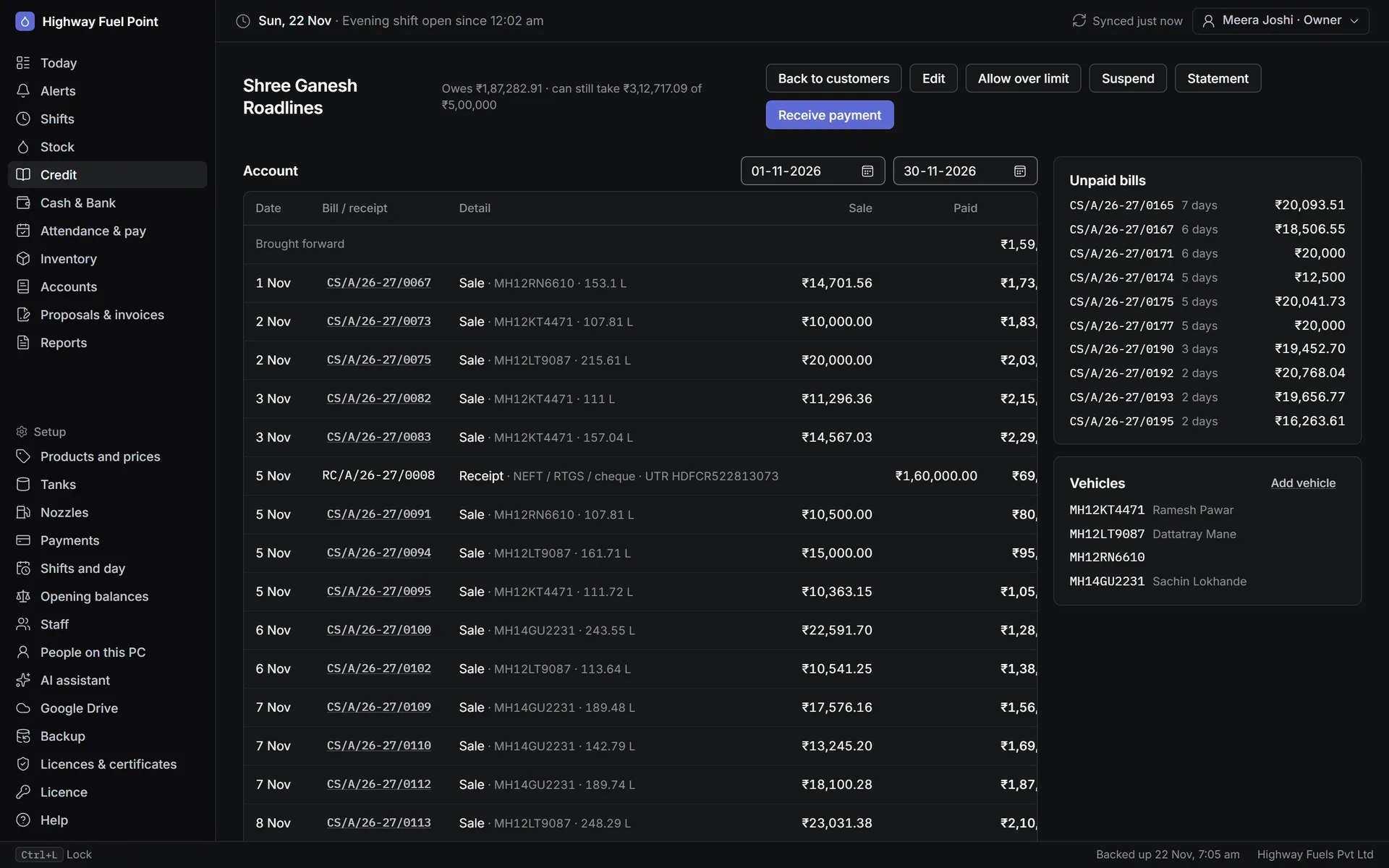
The top line shows what the customer owes, what they can still take, and their limit. The page has three parts:
- Account: every sale, void, receipt and interest entry between the two dates, with a running Balance. It starts with Brought forward. Select a bill number to open the bill.
- Unpaid bills: each unpaid bill with its age in days, oldest first. A bill older than the credit period is marked overdue.
- Vehicles: the vehicle numbers on the customer's list, with the driver's name if you gave one.
The buttons at the top are Back to customers, Statement and Receive payment for everyone. The Owner also sees Edit, Allow over limit and Suspend.
Add a vehicle
Every credit sale is for a vehicle. You can add vehicles before the first fill.
- Open the customer's page.
- Under Vehicles, select Add vehicle.
- Type the Vehicle number as it is on the plate, for example MH 12 AB 4471. Spaces and dashes do not matter.
- If you like, type Driver's name (optional) and Driver's mobile (optional).
- Select Save.
A vehicle number can be on only one customer's list. If it is already on another list, the app says whose list it is on.
You can also add a vehicle during a credit sale: type a number that is not on the list yet. That sale then needs a Manager's or the Owner's PIN. See Credit sales and bills.
Suspend a customer
The Owner can stop all credit for a customer at once.
- Open the customer's page.
- Select Suspend.
The customer now shows Suspended. No credit sale can be saved for them, and the Owner cannot allow one over the limit. To start credit again, select Make active.
Let one sale go over the limit
A credit sale is blocked when it takes the customer over their limit, or when they have an overdue bill. The Owner can allow one sale anyway.
- Open the customer's page.
- Select Allow over limit.
- In Allow a sale of up to (₹), type the full amount of the sale, not just the part over the limit.
- In For how many hours, type how long the permission lasts. It starts at 4.
- In Why, say why.
- Choose the Owner under Who is approving and type the Owner's PIN.
The app shows Override saved. The next sale up to that amount goes through. It covers one sale only. A suspended customer cannot be allowed over the limit; make them active first.
Ask on the Owner's phone instead
The same window has the button Owner not here? Ask on their phone. Fill in the amount, hours and reason, then select it instead of typing a PIN. The request goes to the Owner's phone app. When the Owner approves it there, a sale up to that amount goes through. See Today and approvals on the phone.
The customer's page lists these requests under Asked of the Owner, each with its state: waiting for the Owner, approved, declined or expired: ask again.
Next steps
Something here does not match your screen, or a step is unclear? Tell us and we will fix the page.