Credit sales from the phone
Record a credit sale at the forecourt on the phone app, with the vehicle, amount, driver's photo and signature, into the shift that is open on the PC.
On this page
You can record a credit sale on the phone app while you stand at the pump. The phone takes the driver's photo and signature. The sale goes into the shift that is open at the station, and the station PC sees it, with its bill number, after the next sync. This page is for the Owner and anyone the Owner allows to make credit sales.
Before you start
- You need the Credit permission, to see New credit sale, and the Reports permission, to see the Today tab where the button is. A Manager has both unless the Owner changes it.
- A shift must be open at the station. The phone cannot open a shift. Open it on the station PC. See Open a shift.
- The customer must be set up as a credit customer, and be active. See Credit customers and vehicles.
- Allow the app to use the camera if you want to take the driver's photo.
Record a credit sale
- Open Today. If you have more than one station, select the station at the top.
- Select New credit sale.
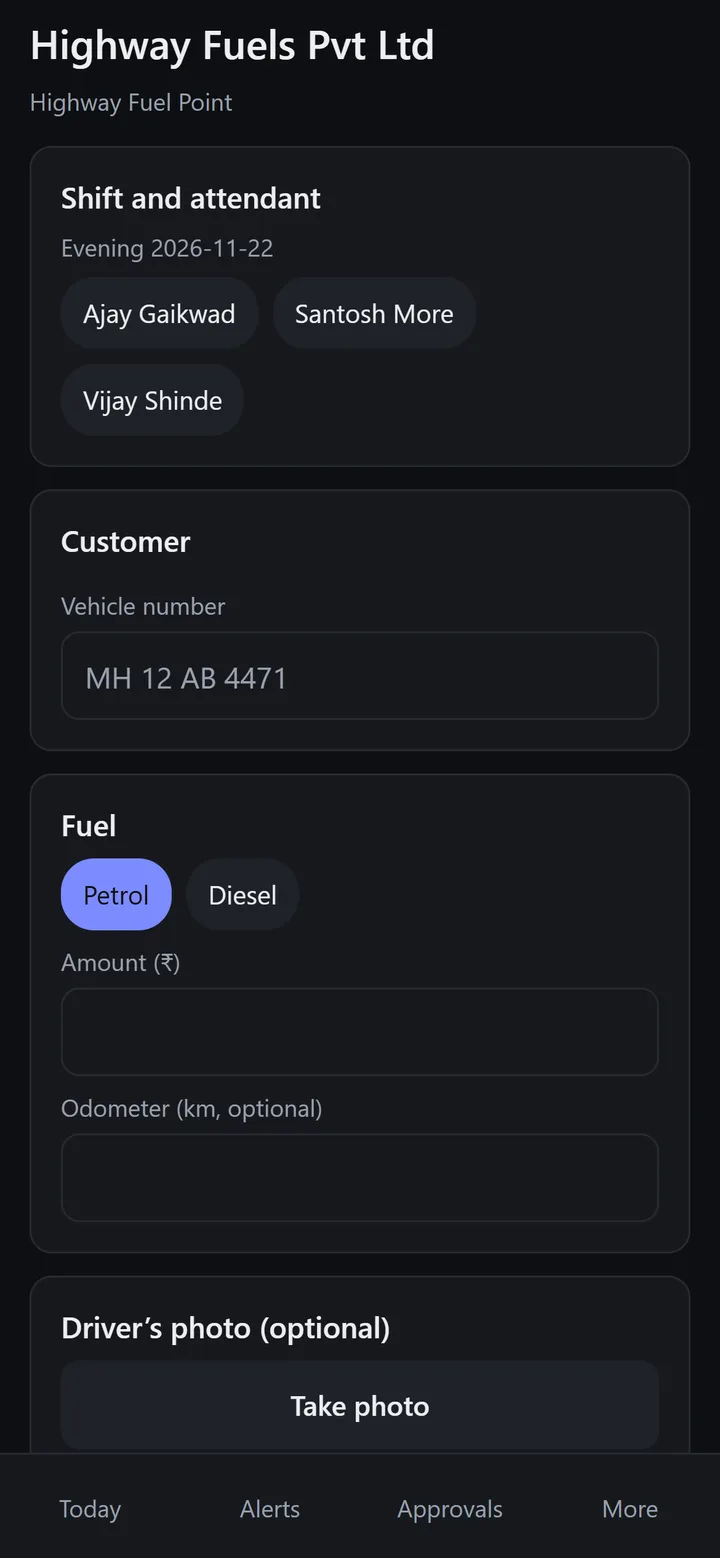
- Under Shift and attendant, select the attendant who filled the vehicle. If more than one shift is open, select the shift first.
- Under Customer, select the customer. The app shows how much the customer Can still take.
- Select the vehicle from the customer's list, or type it in Vehicle number as on its plate, for example MH 12 AB 4471.
- Under Fuel, select the product if the station sells more than one.
- Type the Amount (₹).
- If you want, type the Odometer (km, optional).
- Under Driver’s photo, select Take photo and take a photo of the driver. Select Take again to retake it.
- Under Driver’s signature, hand the phone to the driver to sign with a finger in the box. Select Clear signature to start again.
- Select Save credit sale.
The app goes back to Today. A message says Saved: bill, then the bill number, the amount and the customer's name. Select OK to close it.
Until everything needed is filled in, the app shows Still needed: and what is missing, and Save credit sale stays grey.
How the phone works out the sale
- You type the amount in rupees. The app works out the litres at the rate the shift opened with for that product.
- The phone cannot give cash to the driver. Record a cash advance on the station PC.
- The sale counts toward the attendant's handover in that shift, as a sale entered on the PC does.
Photo and signature
For most customers the photo and signature are optional. The headings say Driver’s photo (optional) and Driver’s signature (optional).
If the Owner has set Driver’s photo and signature needed (taken on the phone app) for the customer, the word "optional" goes away. The app does not save the sale until you add both.
The sale is saved first. The photo and signature are sent to the server after it. The station PC shows them on the bill after it syncs.
A vehicle that is not on the customer's list
If you type a vehicle number that is not on the customer's list, the phone adds it to the list when you save. You approve this in your own name; no other PIN is needed.
The phone refuses the sale if:
- the vehicle is on another customer's list;
- the vehicle has been taken off this customer's list;
- the number does not look like a number plate. Type it as on the plate, like MH 12 AB 4471.
When the sale is blocked
Before saving, the app checks the customer's credit, as the station PC does. If the sale would take the customer over the limit, or the customer has a bill older than the credit period, the app says why and does not save the sale.
To allow it, the Owner approves an over-limit sale. The station PC can ask the Owner's phone for this. See Today, alerts and approvals and Credit sales and bills.
Without the internet
If the phone is offline, the sale is saved on the phone with its bill number. The phone sends it, with the photo and signature, when it is back online. Open More to see how many entries are waiting to send.
If something goes wrong
| You see | What to do |
|---|---|
| No shift is open at this station. Open the shift on the PC first. | Open the shift on the station PC, then pull down on Today to sync. |
| The camera is turned off for this app in the phone’s settings. | Turn on the camera for PetroKhata in Android's settings. |
| Credit sales go into a shift that is not yet locked. | The shift was locked on the PC. Enter the sale in the next shift. |
| The Owner has turned off the phone app for you. | Ask the Owner to switch on Phone app for you in Team & Access. |
Something here does not match your screen, or a step is unclear? Tell us and we will fix the page.