Close a shift
Enter the closing meter readings, test litres, card and QR collections and each attendant's cash count, note by note, before the shift goes for review.
On this page
This page shows how to enter everything at the end of a shift: closing meter readings, test litres, card, QR and fleet card collections, and each attendant's cash. A Supervisor, Cashier, Manager or the Owner can do this. Locking the shift is on the next page, Review and lock a shift.
Before you start
- You need the Shifts permission. See Roles and permissions.
- Have each nozzle's meter (totalizer) reading, each card machine's and QR code's batch total for the shift, and each attendant's cash in hand.
Open the closing screen
- Select Shifts in the sidebar.
- Select the shift. It shows as Open or Counting.
The screen is called Close the morning shift (or the name of your shift). It has four steps along the top: Readings, Collections, Cash count and Review and lock. You can do the steps in any order. Different people can do different steps, for example a Supervisor on readings and a Cashier on cash. To leave, select Back to shifts.
Each step has its own save button. Save each step before you move to another step.
Step 1: Readings
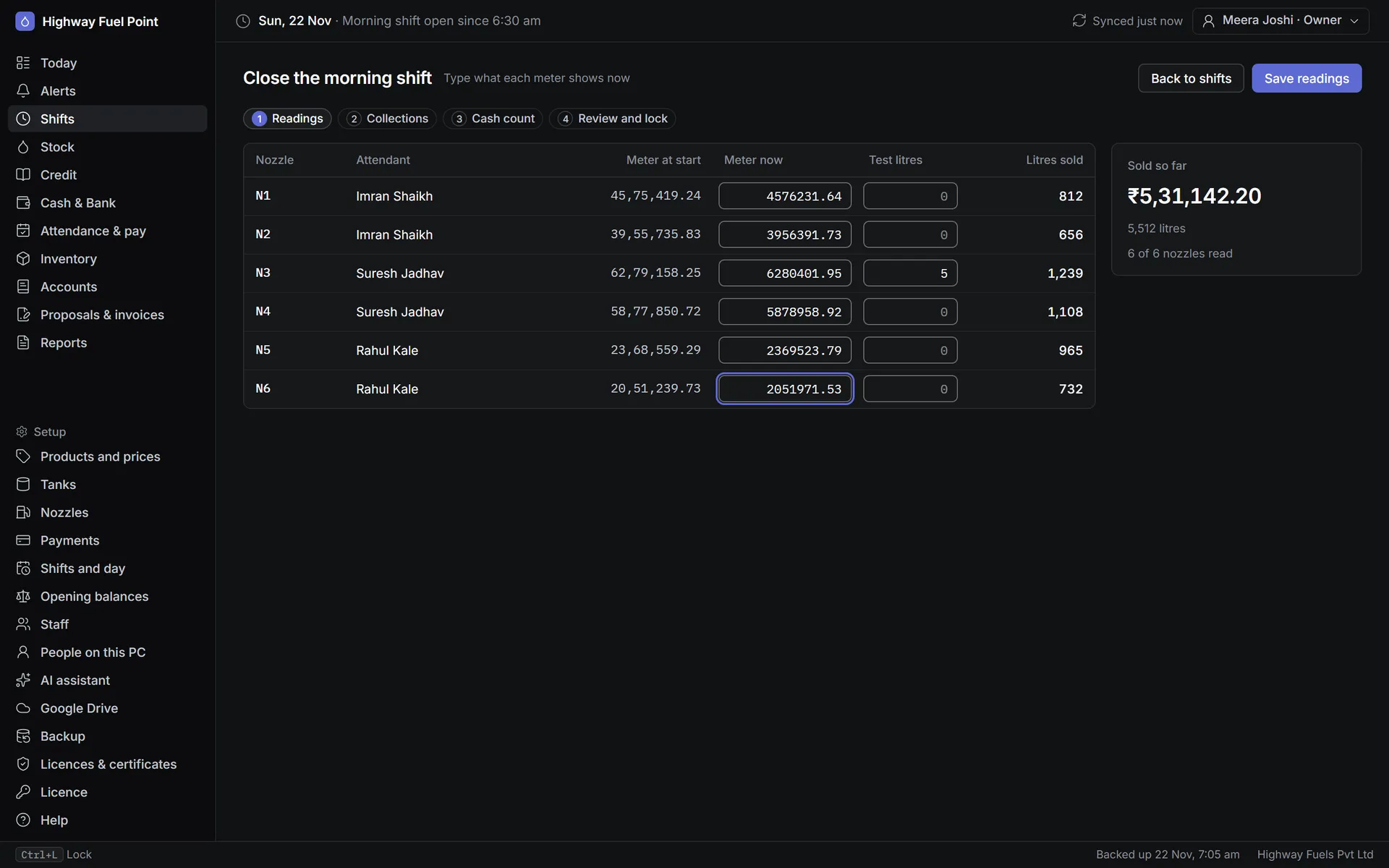
The table lists every nozzle in the shift with its Attendant and Meter at start. The meter at start comes from the last closing and cannot be changed here.
- Select Readings.
- In Meter now, type what the nozzle's meter shows, like 4576231.64. Commas are allowed.
- In Test litres, type the fuel tested and poured back into the tank on this nozzle, like 5. Leave it empty if there was no test.
- Press Enter to move to the next box. Enter goes along the row, then to the next nozzle.
- When you finish, select Save readings. Pressing Enter in the last box also saves.
Litres sold for each nozzle and Sold so far on the right (amount, litres, and how many nozzles are read) change as you type. Litres sold is the meter now minus the meter at start, less the test litres.
You can save some nozzles now and the rest later. When every nozzle has a closing reading, the app says: All nozzles read. The next shift can open; collections and cash count come next. The shift then shows as Counting, and the next shift can be opened.
When the meter has gone round to zero
A meter that passes its highest number starts again from zero. Then the reading now is smaller than the meter at start. If the numbers fit a meter going round, the app shows, for example, Gone round to zero? 1,240 litres sold.
- If the meter really went round, tick Yes, the meter went round, then save.
- If not, the reading was typed wrongly. Type it again.
If a smaller reading does not fit a meter going round, the app refuses it with a message like "Closing is less than opening by 1,208 litres. Check the meter."
When a sale is unusually large
If a nozzle sold more than it usually could in a shift, the app shows, for example, 3,500 litres is more than usual. Check the meter. If the reading is right, tick Yes, that is right, then save.
Test litres above 5 litres
Each nozzle may have up to 5 litres of test fuel in one business day without approval. This counts the tests from every shift of that day.
If you go over, the row shows Over 5 litres today: needs a Manager’s PIN. When you select Save readings, the A Manager’s approval window opens.
- In Who is approving, choose the Manager or the Owner.
- They type their PIN.
The readings are saved with the approval. Test litres can never be more than the litres that went through the meter. If you try, the row shows More than went through the meter.
Other messages on a reading
| Message | Meaning |
|---|---|
| Check this | The box does not hold a number. |
| More digits than the meter | The reading is longer than this nozzle's meter. Check for an extra digit. |
Step 2: Collections
- Select Collections.
- For each attendant, type the amount they took on each card machine, QR code and fleet card. One column is shown for each.
- In the Batch total row, type each machine's or QR code's total for the shift, once.
- Select Save collections. The app says Collections saved.
Cash is not typed here. It is counted in the next step.
Below the table, the app compares each batch total with what the attendants took:
- HDFC card machine: matches what the attendants took. Nothing to do.
- … more on the machine than the attendants took. Find out whose it is before locking. One attendant's amount is too low.
- … the attendants took … more than the machine shows. Check before locking. One attendant's amount is too high.
A card machine or QR code with money on it needs its batch total, and the totals must match, before the shift can be locked.
If there are no card machines, QR codes or fleet cards set up, the step says so. Add them in Setup → Payments. See Payment instruments.
Lubes and credit sales
The Collections step also shows two more parts below the table:
- Lubes and other goods: what each attendant took from the rack and what came back. Select Save lubes. The rest counts as sold. See Inventory and lubes.
- Credit sales this shift: credit sales recorded against each attendant. You can add one with Credit sale. See Credit sales and bills.
Both count in what the attendant owes and hands over.
Step 3: Cash count
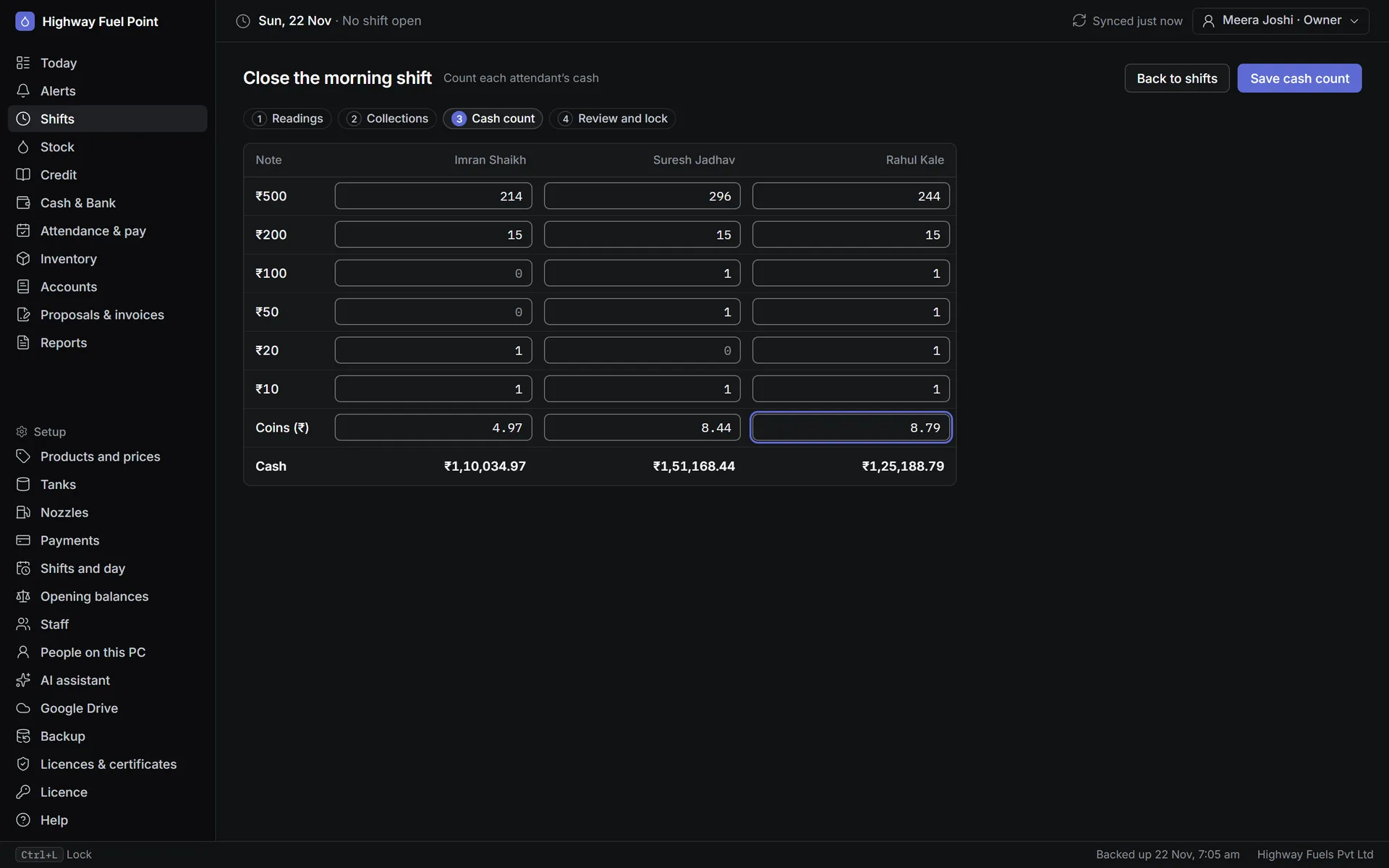
You count each attendant's cash note by note. You never type the cash total: the app works it out from the count.
- Select Cash count. There is one column for each attendant.
- For each note (₹500, ₹200, ₹100, ₹50, ₹20, ₹10), type how many notes the attendant handed over.
- In Coins (₹), type the coins as one amount in rupees, like 8.50.
- Check the Cash row at the bottom. It shows each attendant's total.
- Select Save cash count. The app says Cash count saved.
Count the float too. The attendant hands back the float with the sales money.
Step 4: Review and lock
When the steps are saved, select Review and lock to see whether each attendant tallied, and to lock the shift. See Review and lock a shift.
Something here does not match your screen, or a step is unclear? Tell us and we will fix the page.