Ask AI about your figures
Ask a question about the station's sales, stock and credit, get an answer with charts and tables, and set up the Gemini key the AI needs.
On this page
Ask AI answers questions about your station's own figures. You type a question, and the AI writes a short report with findings, charts and tables. This page covers how to ask, what the AI needs to run, and what is sent to Google. The Owner sets it up once on each PC.
What you need
- The AI service on this PC. It comes with the Windows app. If Setup → AI assistant says The AI service is not installed on this PC. It comes with the Windows app., the AI cannot run on this PC. See Troubleshooting.
- A Gemini API key, added by the Owner. The AI runs on Google's Gemini service. You can get a key free from Google AI Studio (aistudio.google.com).
- The internet. The question and the figures go to Google, so Ask AI does not work offline.
- The Reports permission, to open the Ask AI tab.
Add the Gemini key
Only the Owner adds or removes the key, with their PIN. The Owner must have a PIN on this PC.
- Select Setup → AI assistant.
- Read the box What goes to Google.
- Paste the key in Gemini API key.
- Tick I agree to this for our business.
- Select Save key with Owner’s PIN.
- In The Owner’s approval, choose the Owner and type their PIN.
The screen then says The AI is ready on this PC. The status line says Ready. The Gemini key is kept on this PC only, sealed by Windows.
The key is never synced. Each PC that should use the AI needs the key added on that PC. The AI assistant screen is on the station PC only, not in the web portal.
To take the key off this PC, select Remove key and approve with the Owner's PIN. The screen says The key has been removed from this PC.
Ask a question
- Select Reports → Ask AI.
- Choose the dates in From and To.
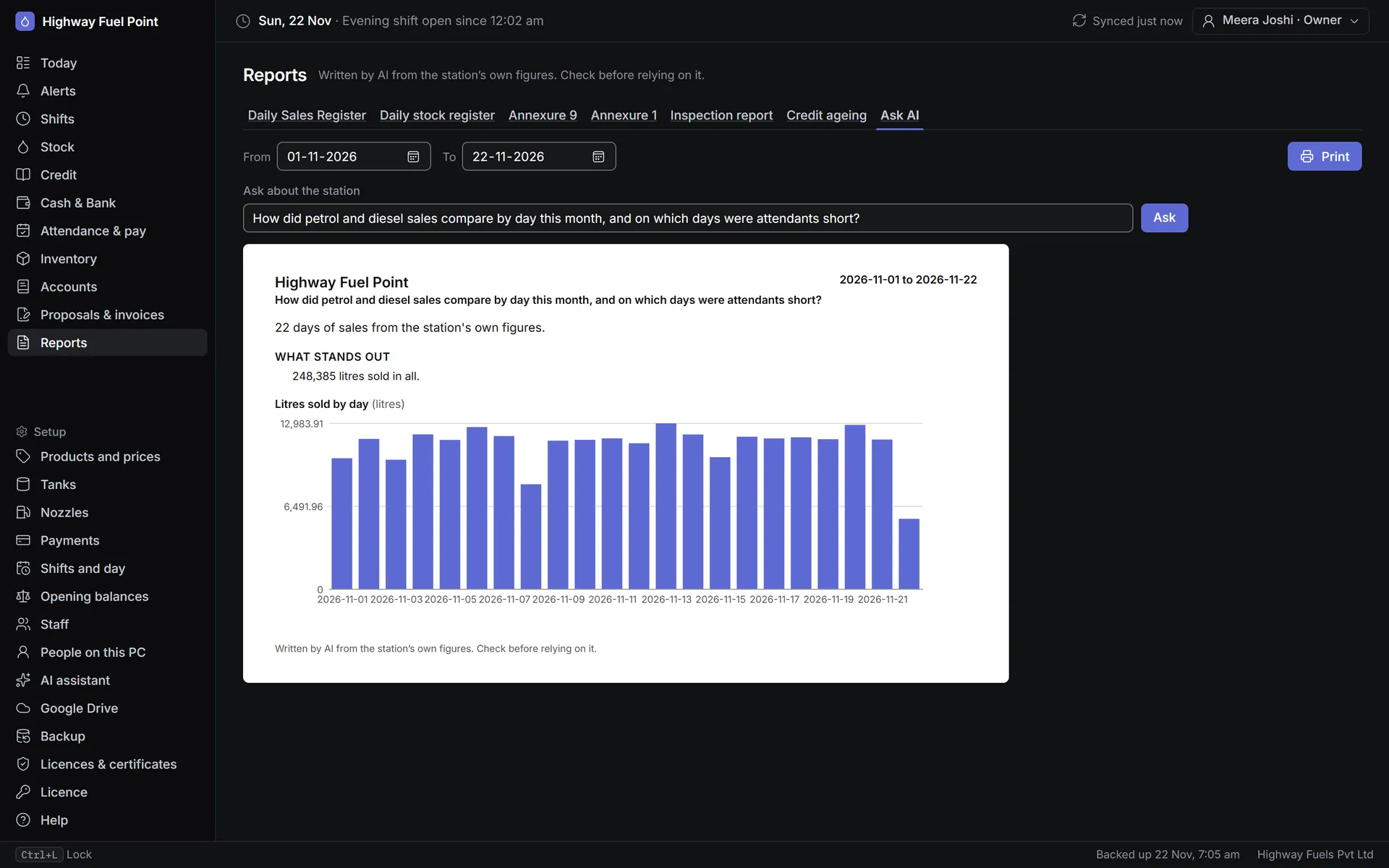
- Type your question in Ask about the station. For example: "How did petrol and diesel sales compare by day, and on which days were attendants short?"
- Select Ask.
- Wait. The screen says The AI is reading the figures. This can take up to a minute.
The AI reads at most 93 days, counted from the From date. For a longer period, ask in parts.
Read the answer
The answer is laid out like a page, with the station name and the dates at the top. It has:
- a title and a short summary;
- What stands out: the main findings, one per line;
- charts (bar, line or pie) where they help;
- tables of figures;
- at the foot: Written by AI from the station’s own figures. Check before relying on it.
To print the answer on A4, select Print while it is on screen. The answer is not saved. If you open another tab or ask again, it is gone, so print it first if you want to keep it.
What the AI is given
The AI sees only figures from this PC, for the dates you chose:
- each day's litres and sales, by product;
- each day's collections: cash, card, UPI, fleet and credit;
- each day's total short and excess in rupees (not the attendants' names);
- each tank's book stock, dip, variation and status for each closed day;
- up to 20 credit customers who owe the most, with their names, what they owe and their limits.
What goes to Google
Your question and the figures above are sent to Google's Gemini service. Google records these requests and may use them to improve its products. People at Google may review them.
- Nothing is sent until someone selects Ask.
- Do not put passwords, bank details or anything private in a question.
- The Owner agrees to this once, with the tick box, before adding the key.
AI drafts of proposals and invoices
The same key lets the AI draft proposals, invoices and templates in Proposals & invoices. A person always checks a draft before it is issued. See Proposals and invoices.
If something goes wrong
| You see | What to do |
|---|---|
| Add a Gemini API key to use the AI. (on AI assistant) | The Owner adds the key, as above. |
| The Owner adds a Gemini API key first, in AI settings. | The key is not on this PC. The Owner adds it on this PC. |
| That does not look like a Gemini API key. Copy it again from Google AI Studio. | Copy the whole key again, with no spaces. |
| Only the Owner adds or removes the key. | You are not the Owner. Ask the Owner. |
| The Ask button stays grey | Type a longer question. |
Something here does not match your screen, or a step is unclear? Tell us and we will fix the page.