Receive a tanker
Record a tanker delivery from arrival to receipt: settling time, seal checks, compartment density against the invoice, samples, and dips before and after.
On this page
This page shows how to record a fuel delivery, from the moment the tanker arrives to the receipt. Anyone with the Stock permission can do it. By default that is the Owner, Managers and Supervisors.
PetroKhata keeps every step of the delivery on one page. It shows what is still to do, and it does not let you decant before the checks are done.
Before you start
- Keep the tanker invoice at hand. You need the invoice number, and the litres and density at 15 °C for each compartment.
- Each receiving tank needs a dip chart. See Tanks and dip charts.
- A tank on hold for water cannot receive a tanker. Release it first. See Morning checks.
Start the delivery
- Select Stock in the left menu.
- Select the Tankers tab.
- Select Tanker arrived.
- Under From, choose the supply location. If it is not in the list, choose Add a supply location… and type its name.
- Type the Invoice number.
- Choose the Invoice date.
- Type the Tanker number and the Driver's name.
- Under Compartments, fill one row for each compartment:
- Into tank: the tank this compartment goes into.
- Invoice litres: the litres on the invoice.
- Invoice density at 15 °C: the density on the invoice, for example 745.2.
- Select Add compartment for each further compartment.
- Select Start settling.
The receiving tanks go on hold. On Morning checks they show On hold: decanting. The 10-minute settling time starts.
While the tanker settles
The delivery page opens. On the right, under Settling, a large timer counts down the time left before decanting can start. You cannot skip it. When it ends, it shows Settled.
Below the timer, Still to do lists what is left. Use the settling time to do these steps.
Seals and documents
Under Seals and documents, tick each check when it is done:
- Seals intact, numbers match the invoice
- Calibration certificate checked
- Water check done, no water
- Filter paper test passed (petrol). This one shows only when the tanker carries petrol.
Compartment density
Under Compartment density, do this for each compartment:
- Take a sample and read the hydrometer and thermometer.
- Type the reading under Density.
- Type the temperature under Temp (°C).
- Select Save.
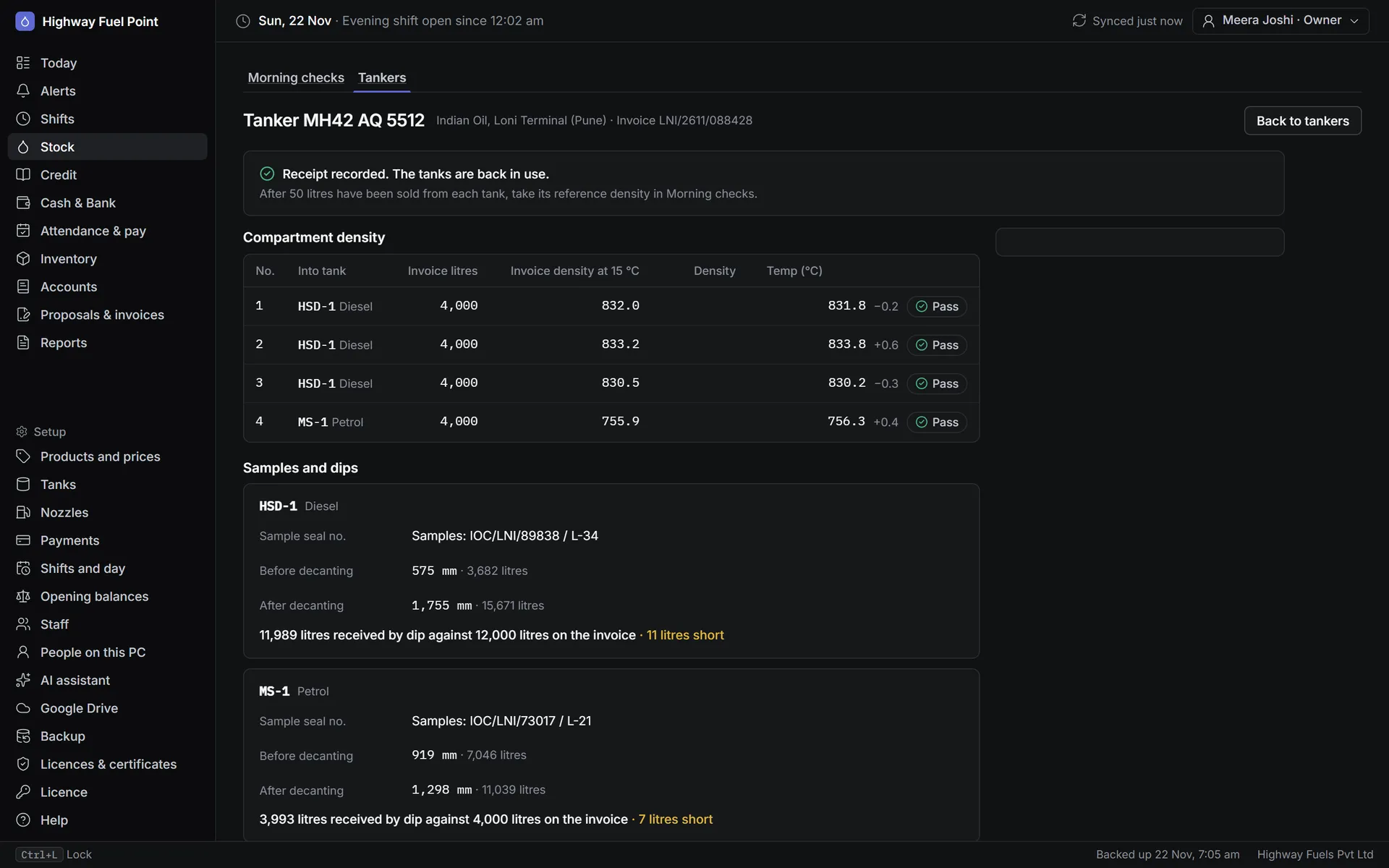
PetroKhata shows the density at 15 °C, the difference from the invoice density, and Pass or Fail. A compartment passes when it is within 3.0 kg/m³ of the invoice density, above or below.
Samples
Under Samples and dips, each receiving tank has its own card. For each tank:
- Type the seal number under Sample seal no.
- Type the label number under Label no., if there is one.
- Select Add sample.
The card lists the samples, for example "Samples: IOC/LNI/89838 / L-34". You can add more than one. PetroKhata keeps the driver's name with each sample.
Dip before decanting
On each tank's card, in the Before decanting line:
- Type the dip in millimetres.
- Type the water dip under Water (mm). It starts at 0.
- Select Save.
The dip and its litres appear on the card.
Decant
When the timer has ended and Still to do is empty, select Start decanting.
After this, the seal checks, compartment densities and dips before decanting can no longer change.
Record the receipt
When decanting is finished, do this for each tank:
- In the After decanting line, type the dip and the water dip.
- Select Save.
The card now shows the litres received by dip against the invoice, for example: "11,989 litres received by dip against 12,000 litres on the invoice · 11 litres short". If the dip shows more than the invoice, it says "more" instead of "short".
When every tank has its dip after decanting:
- Select Decanting done: record the receipt.
The page says Receipt recorded. The tanks are back in use.
What PetroKhata records:
- The tanks come off hold.
- The receipt goes into the tank's book stock at the invoice litres.
- The shortage or excess by dip is kept with the delivery.
After the delivery
Each tank that received fuel now needs a new reference density. The page reminds you: "After 50 litres have been sold from each tank, take its reference density in Morning checks." See Take the reference density after a tanker.
The receipt counts in the day's stock when you close the day. See Stock day and variation.
Find a delivery again
The Tankers tab lists every delivery, newest first, with its date, tanker number, supply location, invoice number and state:
- Settling and checks
- Decanting
- Completed
- Rejected
Select a delivery to open it. Everything you entered is saved as you go, so you can leave a delivery and come back to it later. Select Back to tankers to return to the list.
Something here does not match your screen, or a step is unclear? Tell us and we will fix the page.