Review and lock a shift
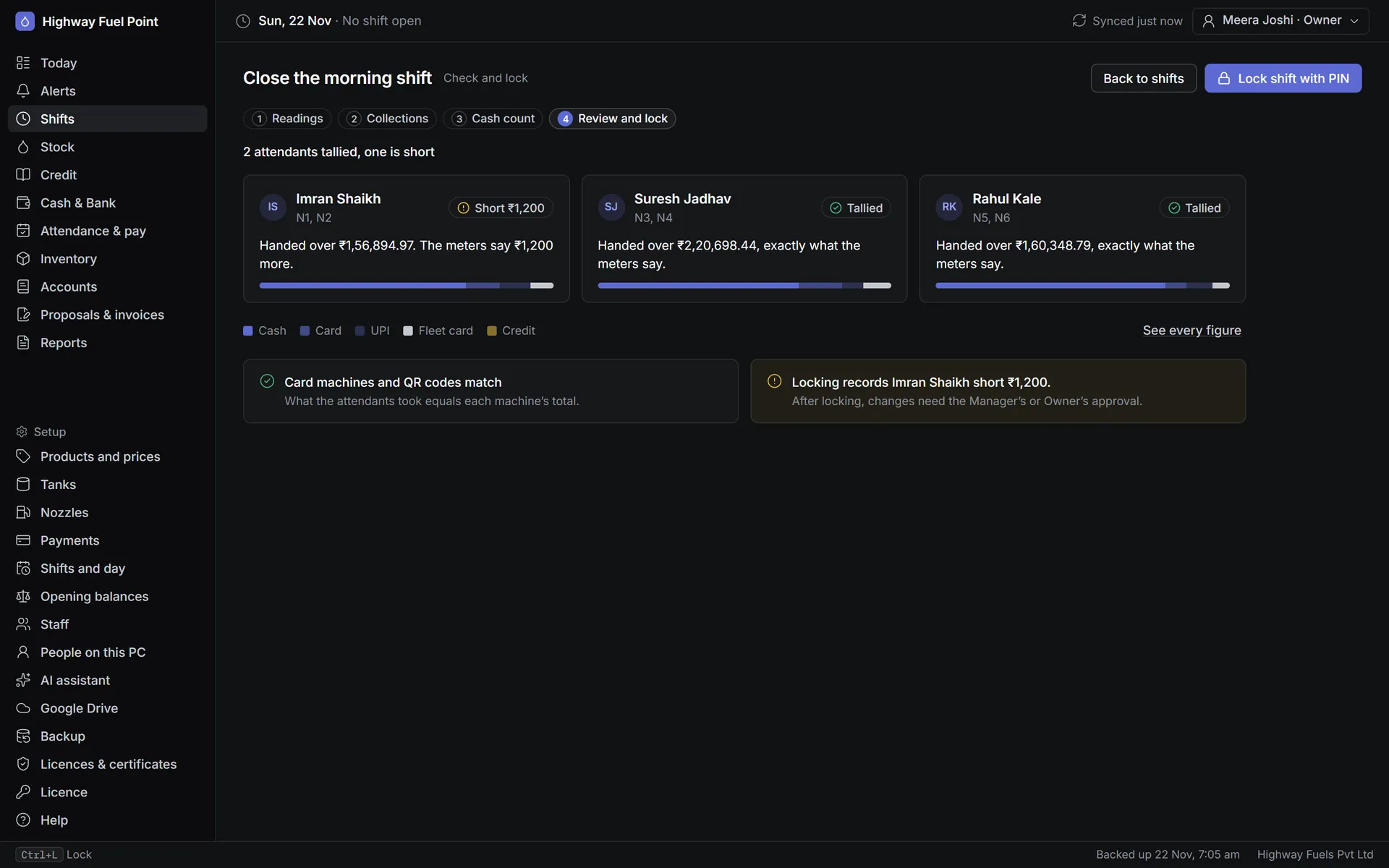
See whether each attendant tallied, is short or has excess, check the card machines and QR codes, and lock the shift with a Manager's or the Owner's PIN.
On this page
This page shows how to read the review of a shift and how to lock it. Anyone with the Shifts permission can see the review. Only a Manager, the Owner, or someone the Owner allows to approve can lock it, with their PIN.
Before you start
- Save the readings, collections and cash count first. See Close a shift.
- The person who locks needs a PIN on this PC. See People, PINs and locking.
Open the review
- Select Shifts in the sidebar.
- Select the shift. It shows as Open or Counting.
- Select Review and lock at the top.
What the review shows
The summary line
The first line counts the attendants, for example 2 attendants tallied, one is short.
One card for each attendant
Each card shows the attendant's name and nozzles, and a status:
| Status | Meaning |
|---|---|
| Tallied | The attendant handed over exactly what the meters say they owe. |
| Short ₹1,200 | The attendant handed over less than they owe. |
| Excess ₹500 | The attendant handed over more than they owe. |
Under the status, a sentence explains it, for example Handed over ₹1,56,894.97. The meters say ₹1,200 more.
The bar shows how the money came in: Cash, Card, UPI, Fleet card and Credit, as the key below the cards shows.
How the app works it out
What the attendant owes is:
- the fuel sold on their nozzles (litres sold × rate), plus
- lubes and other goods they sold, plus
- their float.
What the attendant handed over is:
- the cash counted note by note, plus
- card, UPI and fleet card amounts, plus
- credit sales recorded against them.
The difference between the two is the shortage or excess. The app works it out to the paisa. There is no rounding allowance: a difference of even ₹1 shows as short or excess.
Every figure
Select See every figure to see a table with one row per attendant and these columns: Fuel sold, Lubes, Float, Owes, Cash, Card, UPI, Fleet, Credit, Handed over and Difference. A minus difference is a shortage. Select Hide the figures to close it.
Card machines and QR codes
The box on the left checks each card machine, QR code and fleet card against its batch total:
- Card machines and QR codes match: what the attendants took equals each machine's total.
- … does not match what the attendants took: correct the amounts in Collections before locking.
- No card, QR or fleet payments this shift.
What is still to do
If something is missing, the box on the right shows Still to do before locking and a list, for example:
- Closing readings for N3, N4.
- Count Imran Shaikh's cash.
- Batch total for HDFC card machine.
- PhonePe QR does not match its batch total yet.
Go to the step named, finish it, and come back. Lock shift with PIN stays greyed out until the list is empty.
When everything is in, the box tells you what locking will record, for example Locking records Imran Shaikh short ₹1,200. If everyone tallied, it says Everyone tallied. Locking keeps this exactly as it is.
Lock the shift
- Select Lock shift with PIN. The Lock the shift window opens.
- In Who is approving, choose the Manager or the Owner.
- They type their PIN.
The Shifts screen opens with a line such as "Morning shift locked. Imran Shaikh short ₹1,200." or "Morning shift locked. All tallied." The shift now shows as Locked.
If the window says No Manager or Owner has a PIN on this PC., a Manager or the Owner must first set a PIN on this PC. If the PIN is wrong, the window says how many tries are left.
What locking records
When you lock, the app saves in one go:
- each nozzle's litres and amount, and each attendant's figures, exactly as shown. A reprint of the shift sheet always shows the same figures.
- the fuel that left each tank, for the stock book. See Stock day and variation.
- each float as money out of the safe, and each attendant's counted cash as money into the safe. See Cash and safe.
- any shortage against the attendant. It shows in what the person owes in Attendance & pay. See Payroll.
After locking
- Print the shift sheet. See Print shift sheets and the DSR.
- When every shift of the business day is locked, close the day. See Close the day.
Something here does not match your screen, or a step is unclear? Tell us and we will fix the page.